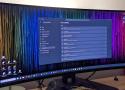
If reading this has you deciding to try using Windows 11 without transparency effects as well, you can disable them either by going to Settings > Personalization > Colors and turning off the Transparency effects toggle, or by visiting Settings > Accessibility > Visual effects, where you can disable the same toggle. //
To disable animations, go to Settings > Accessibility > Visual effects. There you'll find the Animation effects toggle, which you can turn off. If you want to keep some animations while disabling others, you can also search for Advanced System Settings in Windows Search and click the appropriate result—Windows being Windows, there are now two Advanced System Settings menus—then open Performance settings and deactivate only the animations you want in the Visual Effects tab. //
letting my Chroma Drencher live wallpaper (you can find it in Wallpaper Engine) https://store.steampowered.com/app/431960/Wallpaper_Engine/

